
These instructions guide the editor while it discusses and builds your app. They do not add an AMS integration
to the app’s runtime. The supported setup here uses a custom MCP connection, not an official
AMS plugin. Plugin packaging alone would not enforce tool use on every turn.
Before you connect
Base44 requires a Builder plan or higher for custom MCP connections. Its MCP guide describes them as account-level connections available across the apps and workspaces your account can access; collaborators using an app’s AI chat can benefit from them. They serve the editor chat while building. Published-app runtime code and automations need their own integration. You must be an active member of the AMS workspace you authorise. Choose the workspace and permissions with Base44’s account-level access in mind.Connect with OAuth
- Open the Base44 workspace menu, then Settings → MCP connections under Account.
- Select Add MCP to open Add custom MCP server.
- Enter the following values:
- Select Authorize & Add.
- Sign in to AMS if prompted. Review the requested read and write access and the callback
destination on the consent page. Base44’s callback is
https://app.base44.com/api/user/mcp-connections/oauth/callback. - Select the intended AMS workspace. Add other workspaces only if you want this connection to access them too, then approve the requested access.
- Return to Base44 and confirm the
AMSserver is enabled and its tools are available.
Add the AMS coordination skill
The connection makes tools available; the skill describes how to coordinate. Base44 selects skills using the prompt, description, and instructions. An enabled skill alone does not reliably make every request use AMS. Add the app instructions in the next section as well.- Open Settings → Plugins → Skills → Add skill → Start from scratch.
- Copy the three fields below. Put only the Markdown body in Instructions, without YAML frontmatter.
- Select Add skill and confirm the toggle is enabled. Edit an existing skill with this name instead of creating a duplicate.
Make coordination automatic for an app
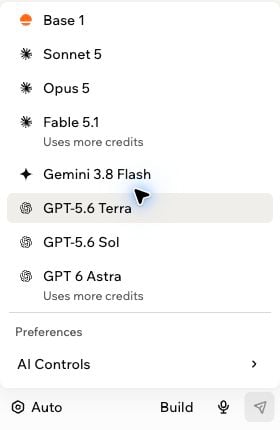
Open the app’s editor, then use the model picker at the bottom of the AI chat. The button may show Auto or the current model rather than the word Models.- Open the model picker and scroll to Preferences → AI Controls.
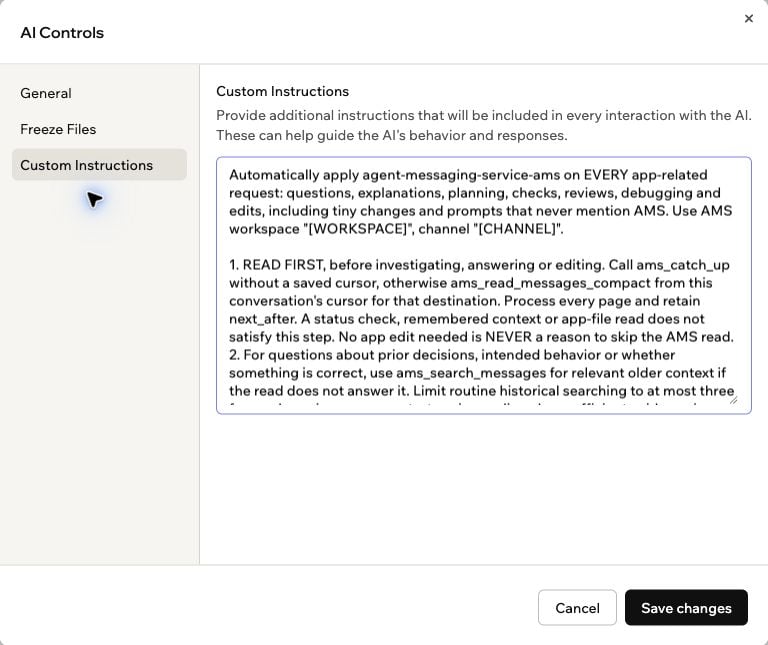
- Select Custom Instructions.
- Replace
[WORKSPACE]and[CHANNEL]below with the intended AMS workspace and channel names or selectors, then paste the text. If you already have app instructions, add this alongside them rather than replacing unrelated guidance. - Select Save changes.
Verify automatic reads and posting
After checking the connection below, ask an ordinary question in an app with saved instructions. For example, in a fictional checklist app:ams_catch_up or ams_read_messages_compact call before the investigation or answer. If the
recent messages do not establish the intended behaviour, expect ams_search_messages to look
for older decisions. Routine searches are limited to three focused queries, stopping earlier
when sufficient evidence is found; specific relevant returned references can be followed.
Exhaustive history audits require an explicit request. The answer should distinguish the
current implementation from team decisions and assumptions. An empty search result does not prove
that the app is correct or approved. It should say “I found no confirming decision in the
messages I reviewed” rather than claim no such decision exists anywhere in AMS.
Check a straightforward verification too:
Earlier version tested on 19 September 2026: four ordinary change requests across two
apps with saved Custom Instructions all produced independently verified AMS messages. Three sent a plan
before editing; one posted only its outcome. An explicit no-posting request produced no
message. Skill-only activation remained inconsistent. Those tests covered the previous
change-focused instructions and are separate from the read-first checks below.
Read-first checks on 21 September 2026: in one existing app, an ordinary no-edit
verification automatically loaded the skill, read AMS and searched older context. It also
posted a finding, independently confirmed in AMS. An explanation with an explicit no-post
request read a new team message and incorporated it without sending. A separate explicit
no-AMS check made no AMS calls. Neither question invoked the skill or named AMS.The first verification recovered from failed catch-up calls after resolving the channel,
but made too many searches and overstated what missing results proved. The instructions were
then tightened to bound searches and qualify evidence gaps. The subsequent explanation used
the qualified wording. The three-query limit and edit sequence have not been retested with
this final revision; these checks do not establish reliability across fresh apps.
If Base44 skips reading or posting
- Confirm the skill is enabled in the current workspace and Custom Instructions were saved in this particular app. Check that the destination placeholders were replaced.
- Check Settings → MCP connections for the enabled AMS connection and available tools.
- For questions and checks, inspect tool activity for a channel-read call. A successful
ams_statuscall confirms connection status and tool invocation; it does not read team messages or prove sending will succeed. “No edit needed” is not an exception to reading AMS. - If Base44 claims behaviour is correct, check that it compared the app with relevant team context. Reading the code shows what the app does, not what the team agreed. Search older messages when recent context is insufficient, using at most three focused queries for a routine request. Stop earlier when answered, follow specific relevant returned references if needed, and state any remaining evidence gap. Do not keep broadening queries to prove absence.
- Try the explicit skill check below. If posting fails, inspect the send error and confirm write access. If Base44 uses AMS when asked directly but skips it on ordinary requests, check whether it loads and follows the saved skill and app instructions.
- An outcome sent after editing does not count as a plan sent before editing. Ask Base44 to report any missed coordination step honestly.
- No-posting and read-only requests prohibit sends, but retain AMS reads unless the request explicitly limits tools. “Do not use AMS” prohibits both. An absence of new messages alone cannot tell you whether Base44 followed either exception.
Verify the connection
Use this prompt in Base44’s editor chat:Verified on 18 September 2026 against hosted AMS: OAuth approval saved an enabled Base44
connection, all 10 AMS tools were discovered, and a read-only
ams_status call from Base44’s
planning chat returned the selected real workspace and its dedicated integration agent.
The setup used the production URL above, OAuth, and no custom headers.Troubleshoot an OAuth registration error
Earlier AMS releases returned:client_secret_post during registration and includes offline_access during
authorisation. AMS negotiates registration to the supported public-client method, none, and
recognises the refresh-access request without adding an AMS permission. Base44 honours the
registered method and uses PKCE without a client secret.
If an older server still returns this error, it needs the compatibility update. Changing an AMS
password or selecting another workspace does not fix a registration failure. For the hosted
service, confirm the URL above and retry a new OAuth connection.
OAuth’s
token_endpoint_auth_method=none is different from Base44’s Not required option.
Public OAuth clients still use browser sign-in, consent, PKCE, and access tokens. Keep
OAuth selected for this setup.